Earnings, Tips & Payment Withdrawals
Grubdeli Delivery Rider App

Benjamin Mathew
Last Update 6 months ago
Understanding how earnings are calculated and how to withdraw funds.
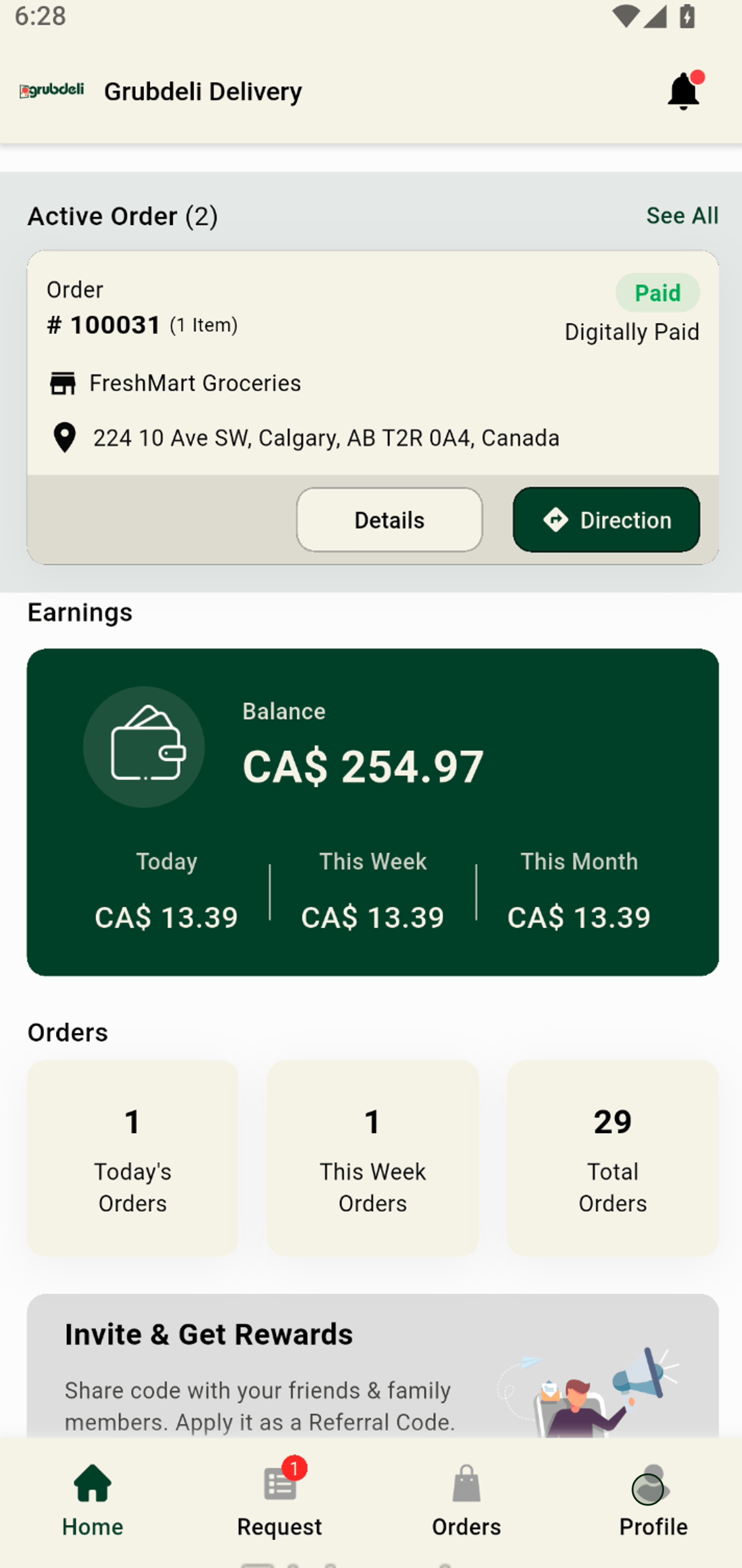
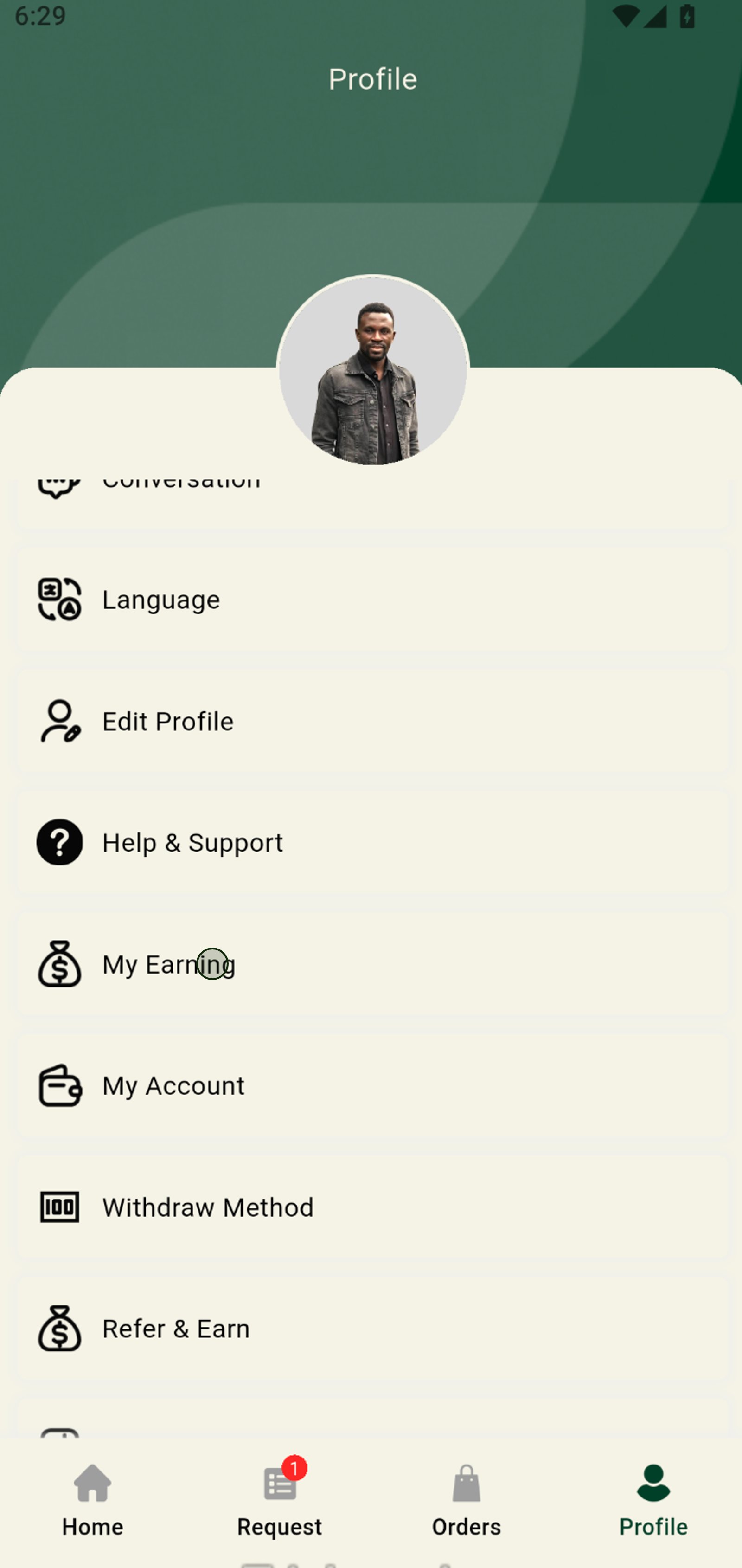
1. Start by tapping the Profile icon to access your account settings and earnings overview.
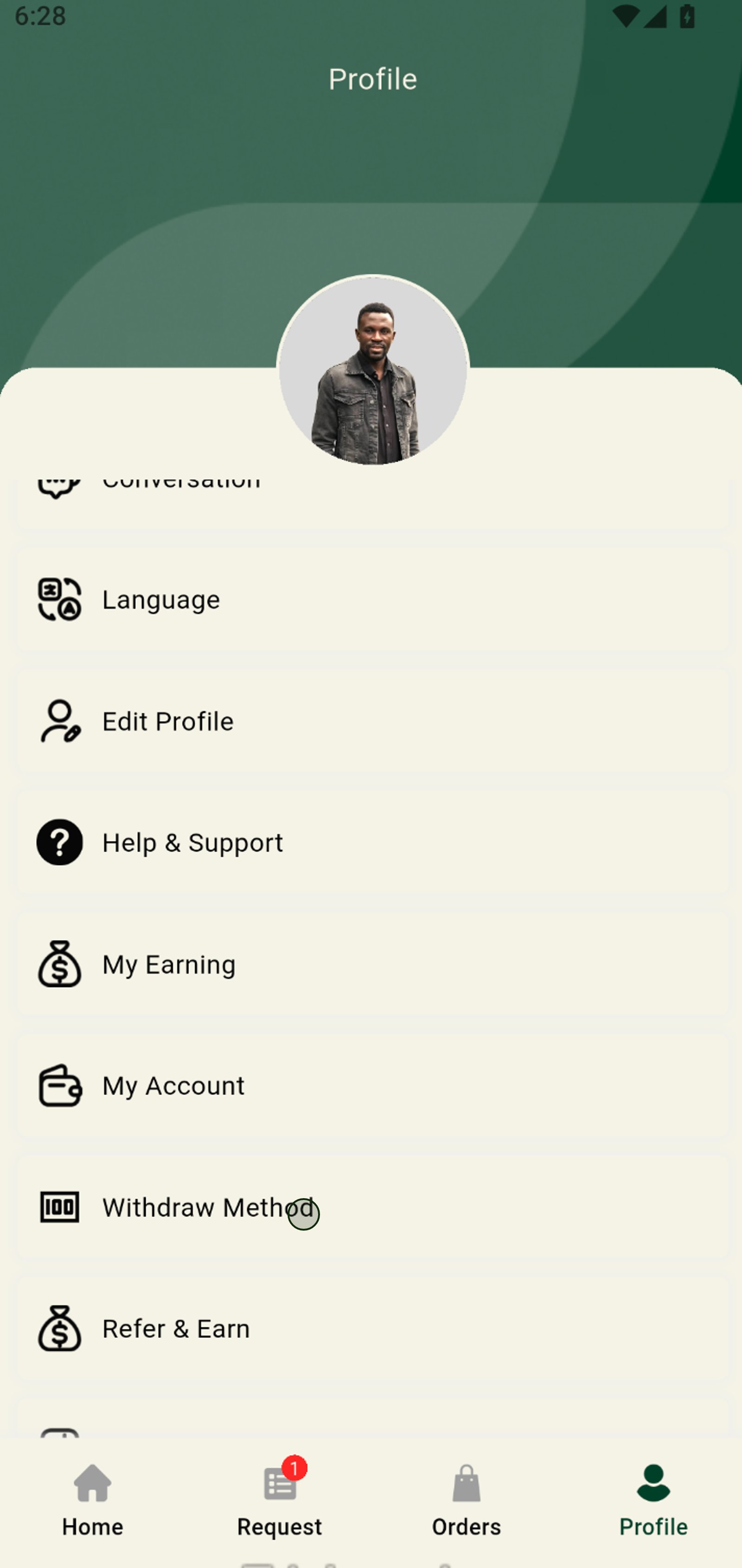
2. Select Withdraw Method to manage how you receive your earnings.
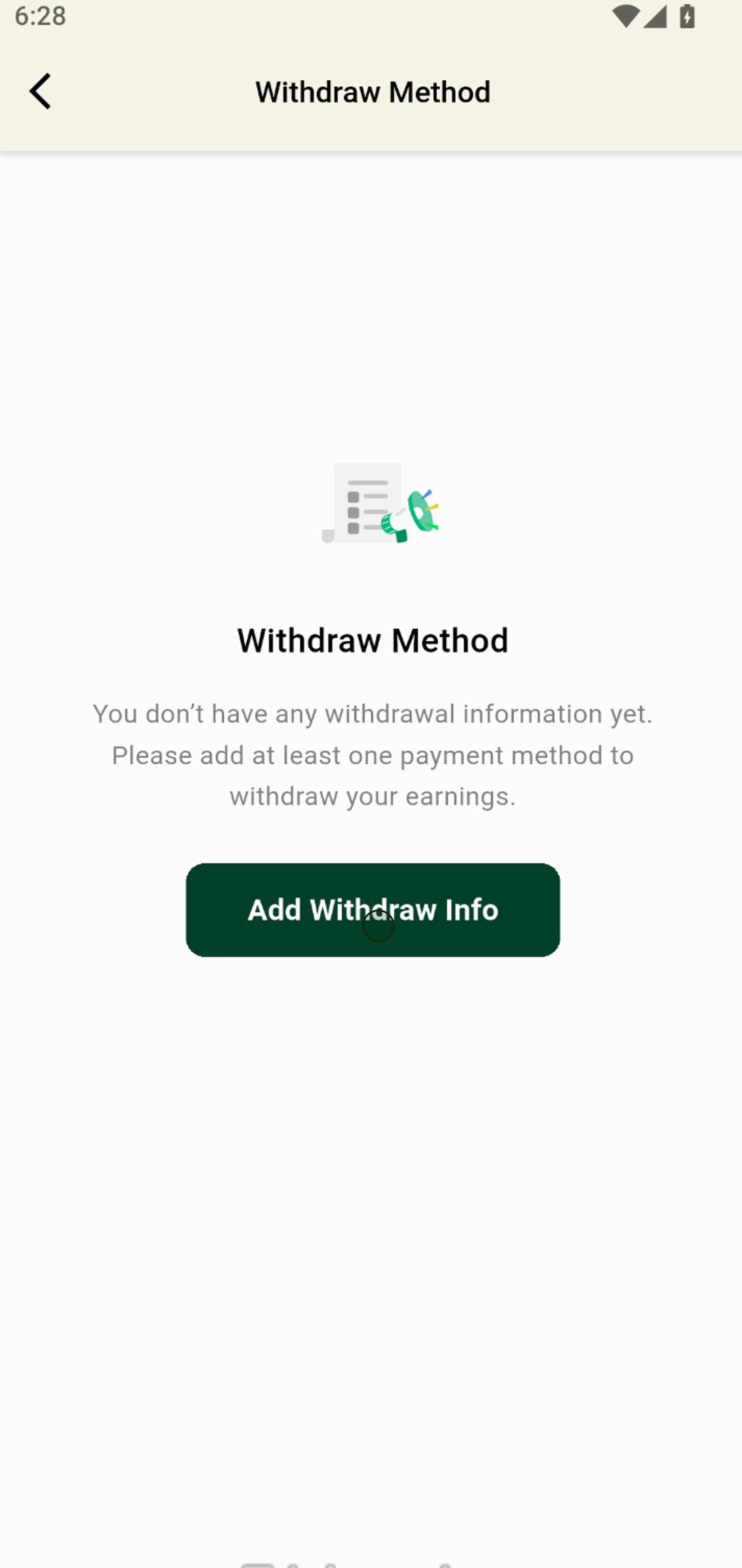
3. Tap Add Withdraw Info to set up your preferred payout option.
4. Enter your full name as it appears on your bank records for Interac e-Transfer.
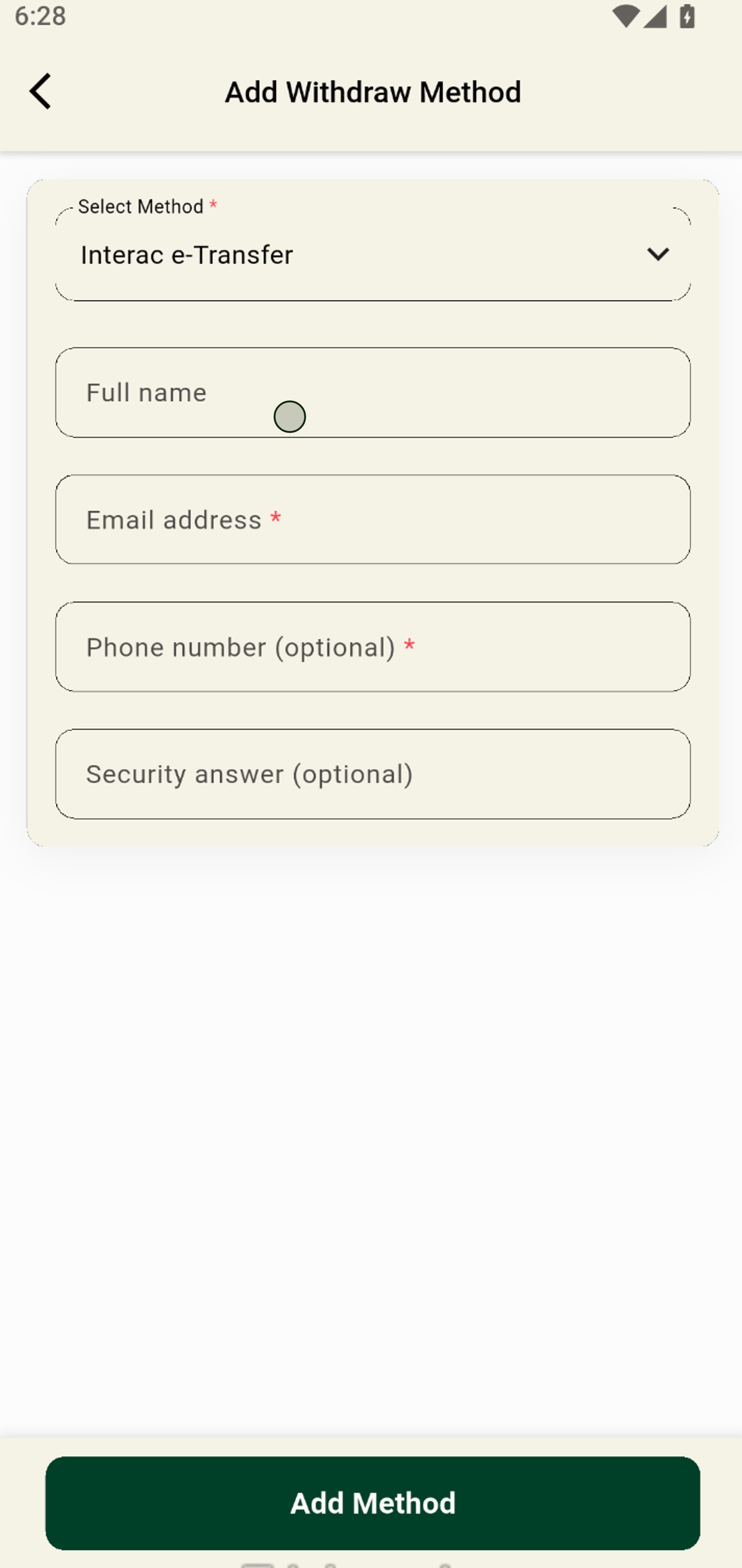
5. Tap Add Method to save your Interac e-Transfer payout details.
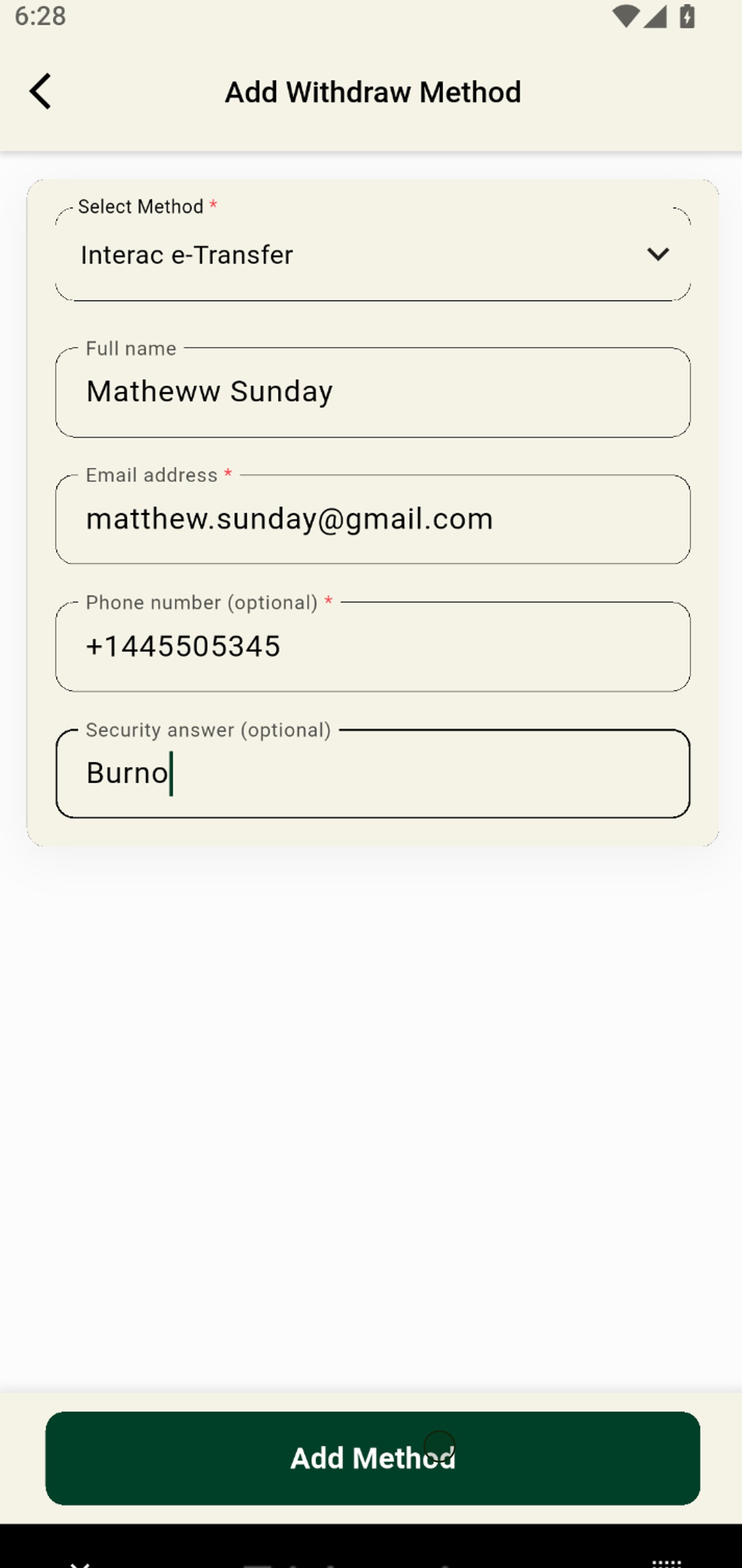
6. Return to the previous screen to continue managing your account.
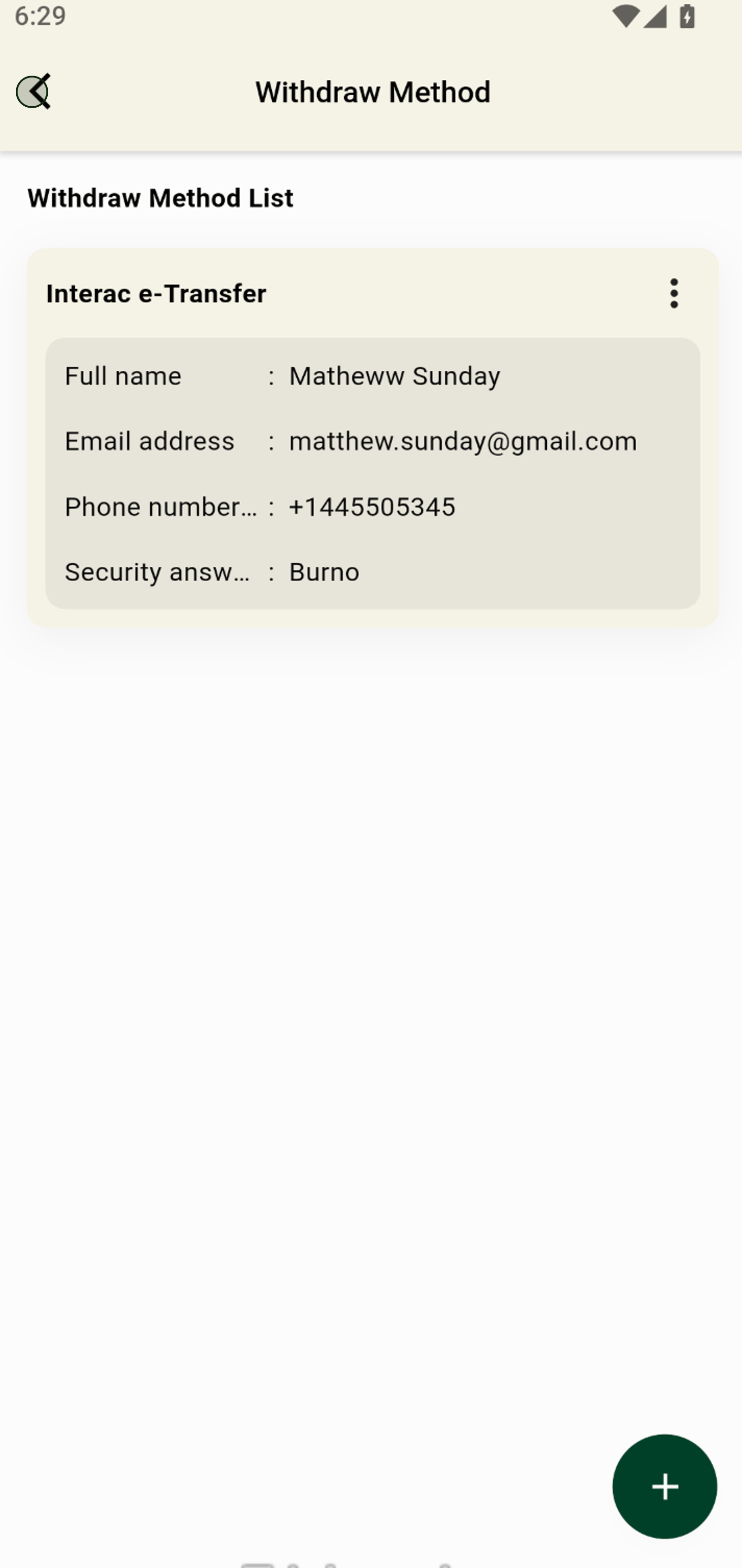
7. Open My Earnings to track your payout history and progress.
8. Tap the Referral tab to check out earnings from inviting friends.
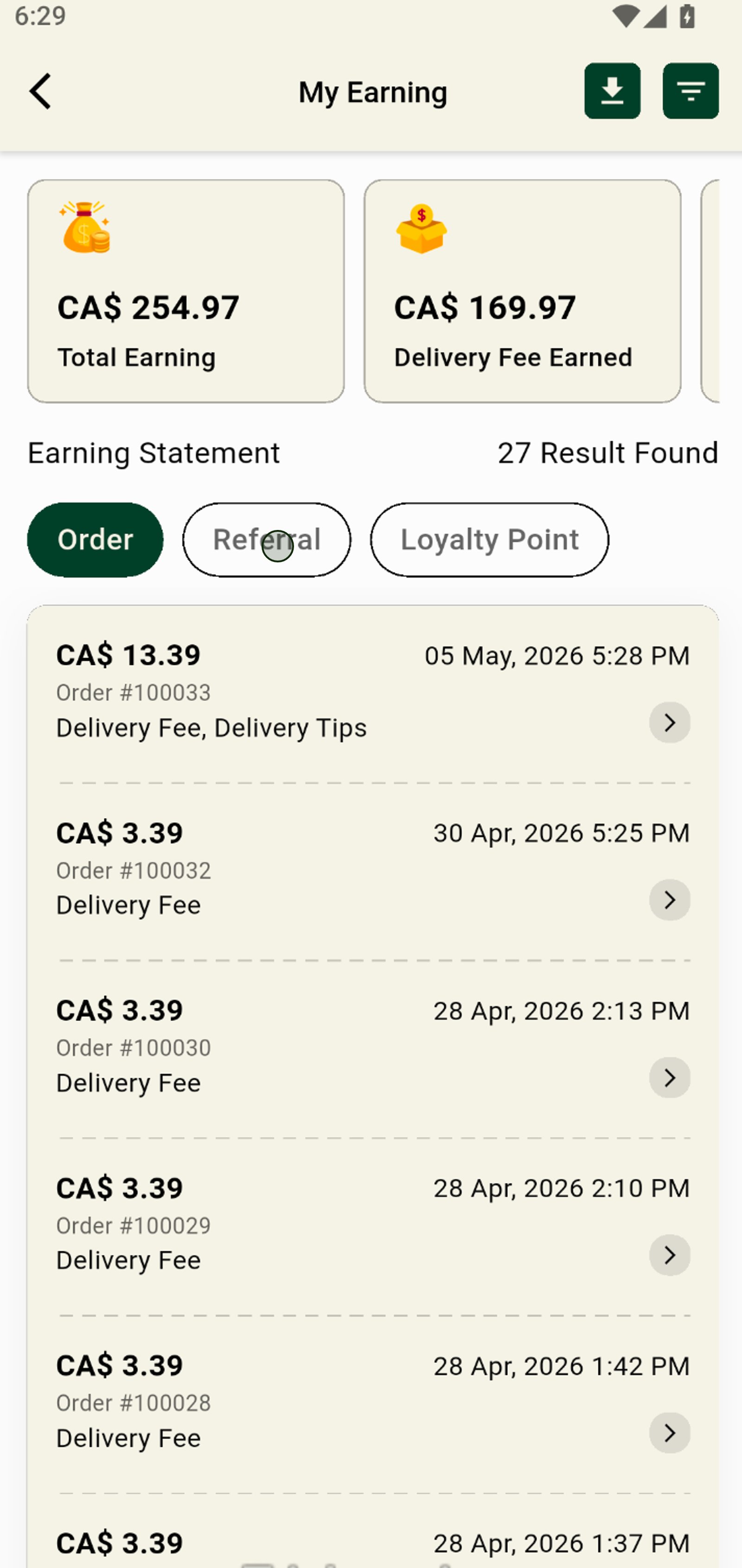
9. Easily download your earnings statements for your personal records.
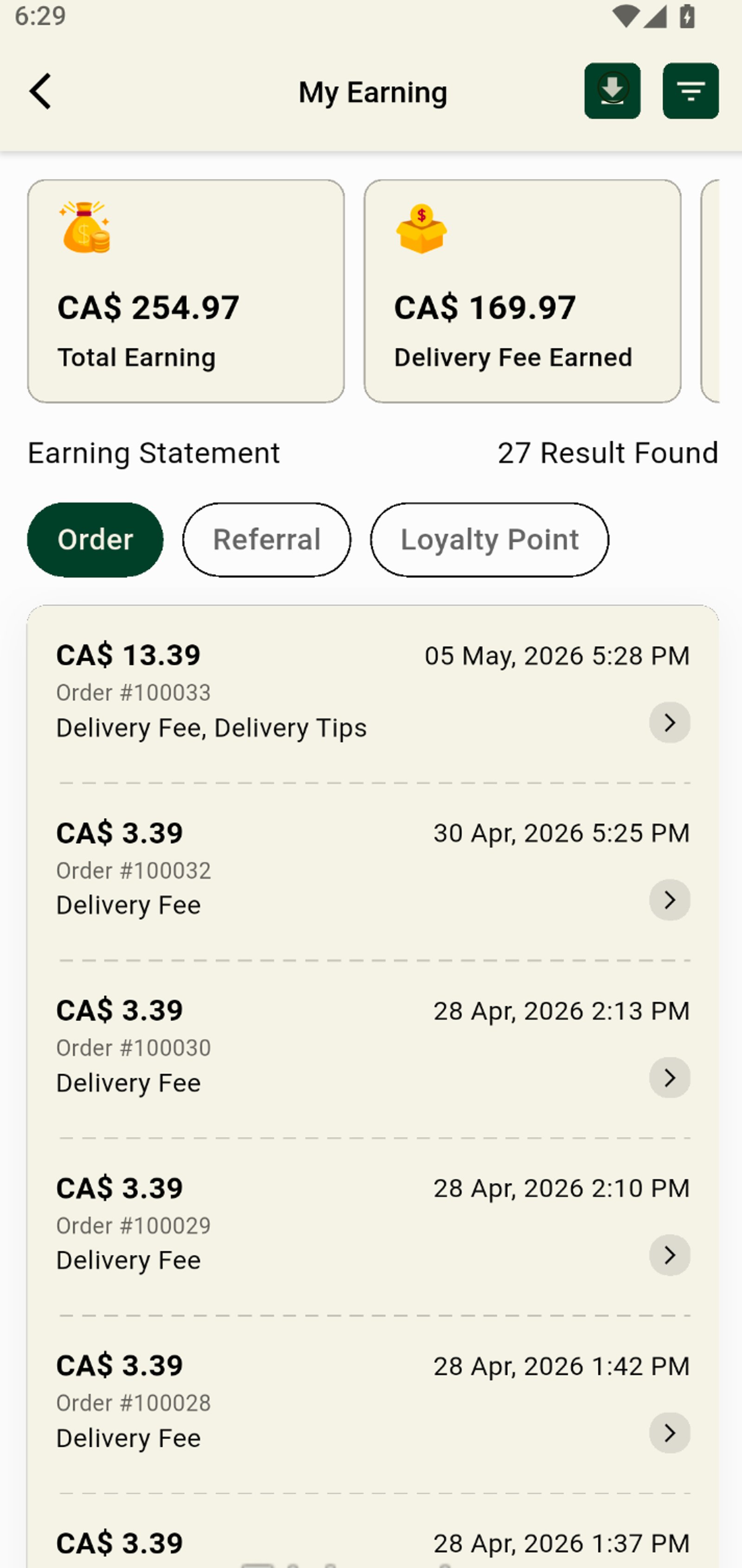
10. Tap the filter icon to customize how your earning results are displayed.
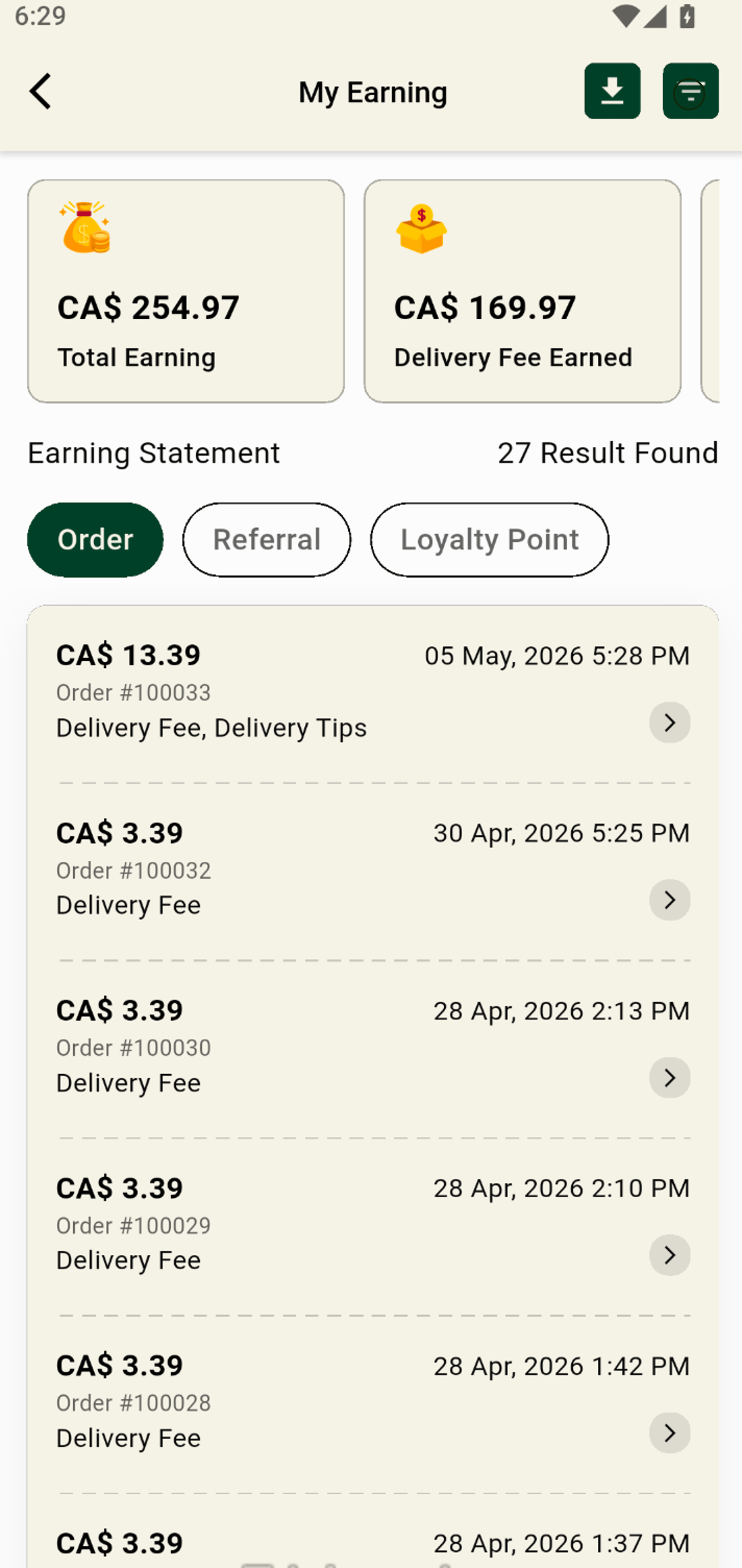
11. Adjust your earnings view by selecting a preferred date range.
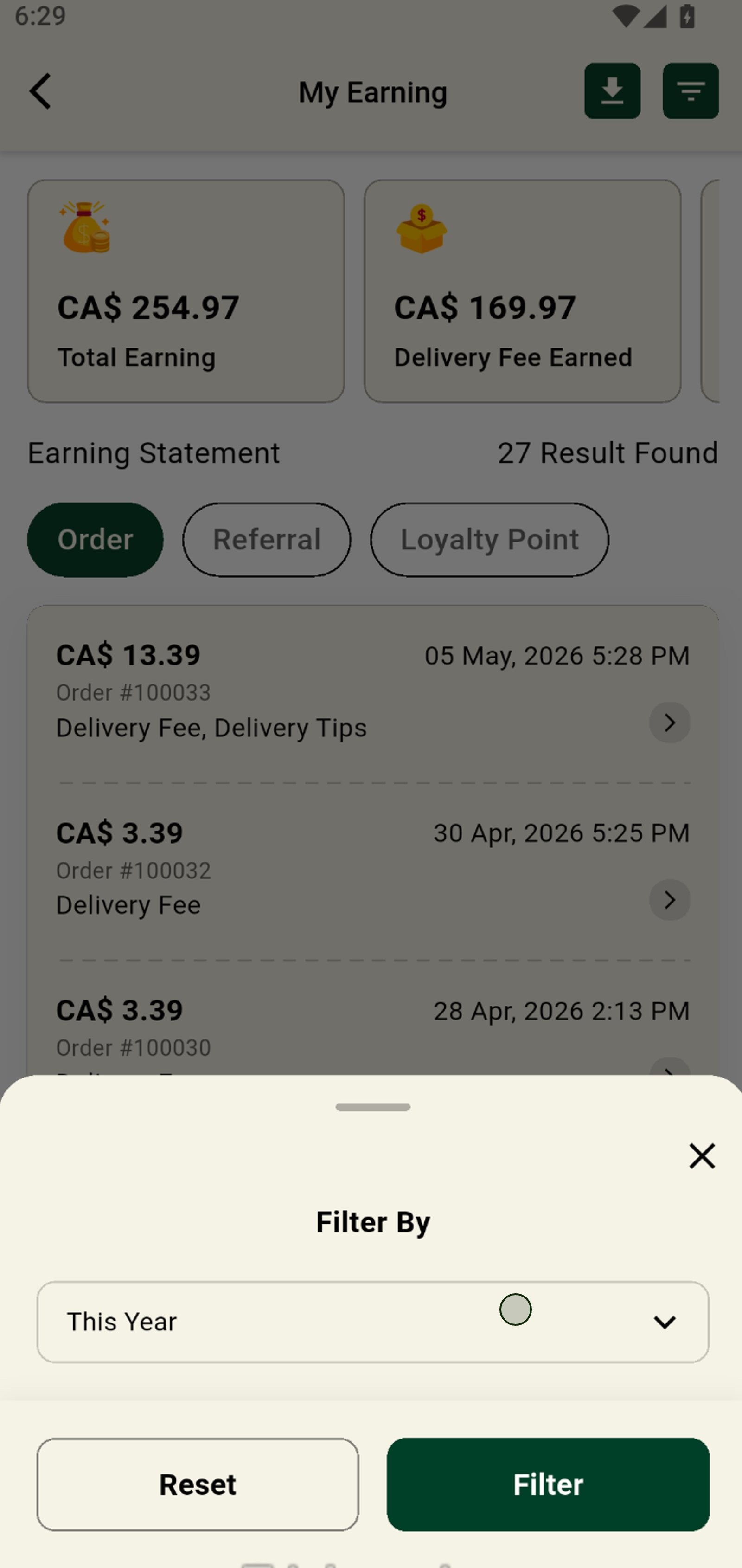
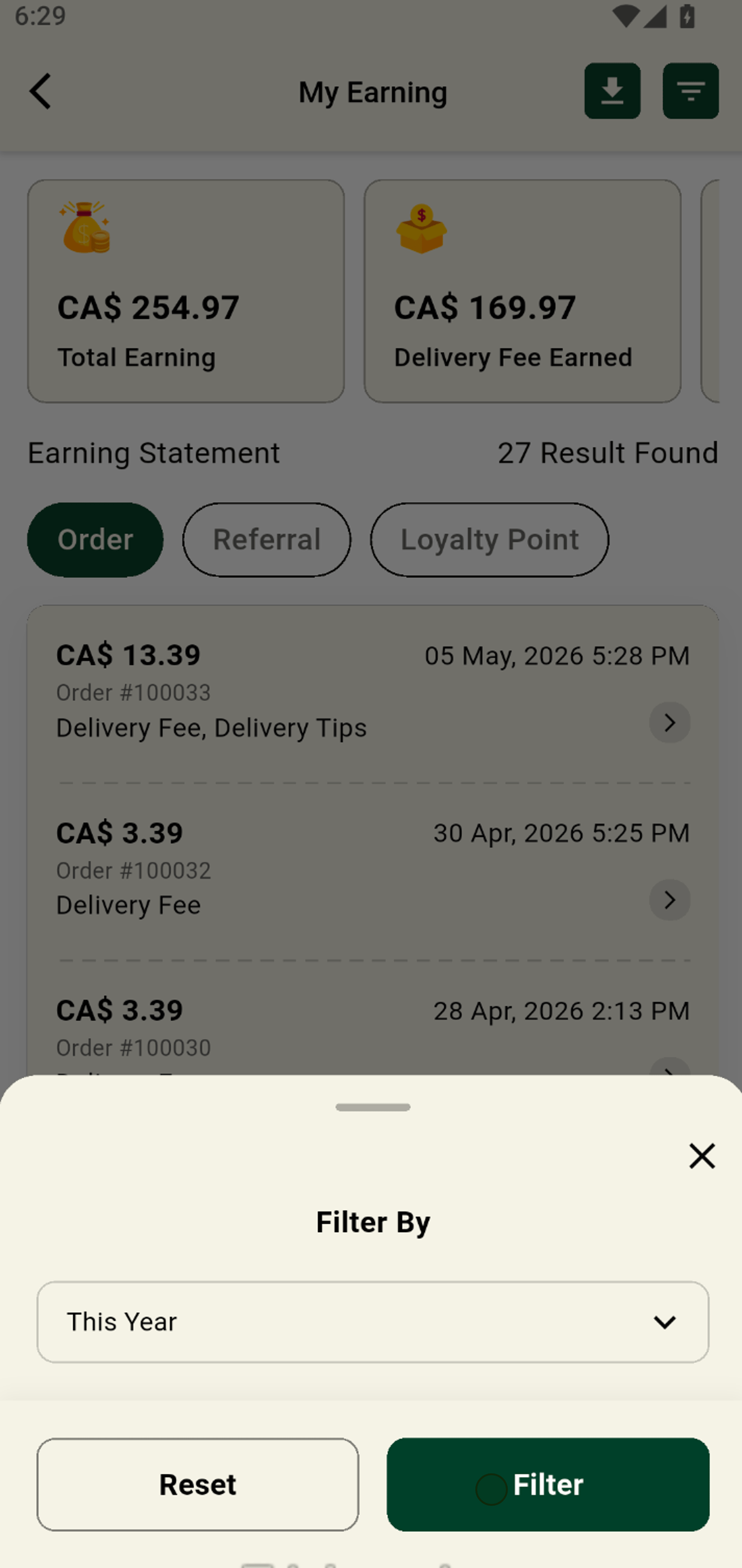
12. Choose This Year to focus on your most recent annual earnings.
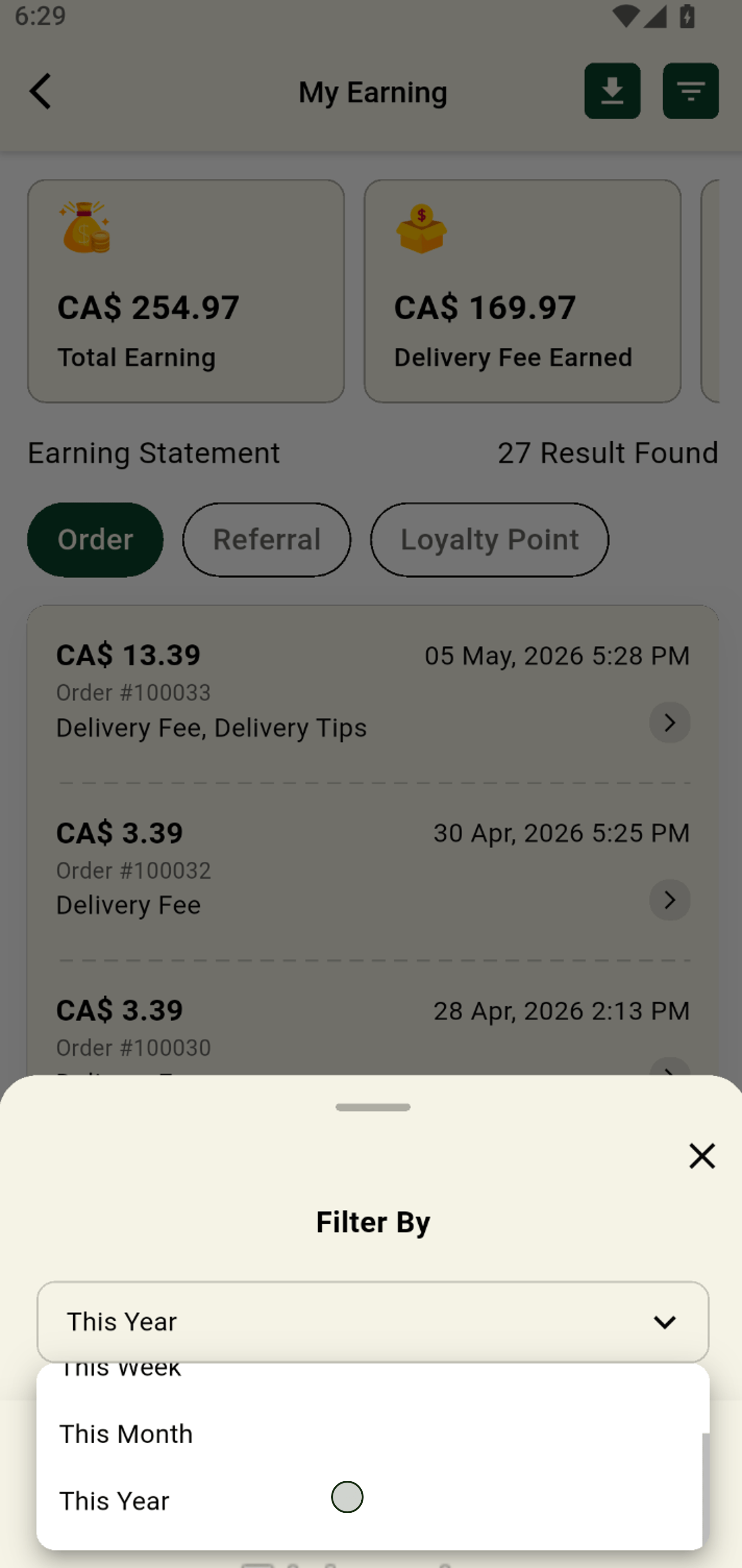
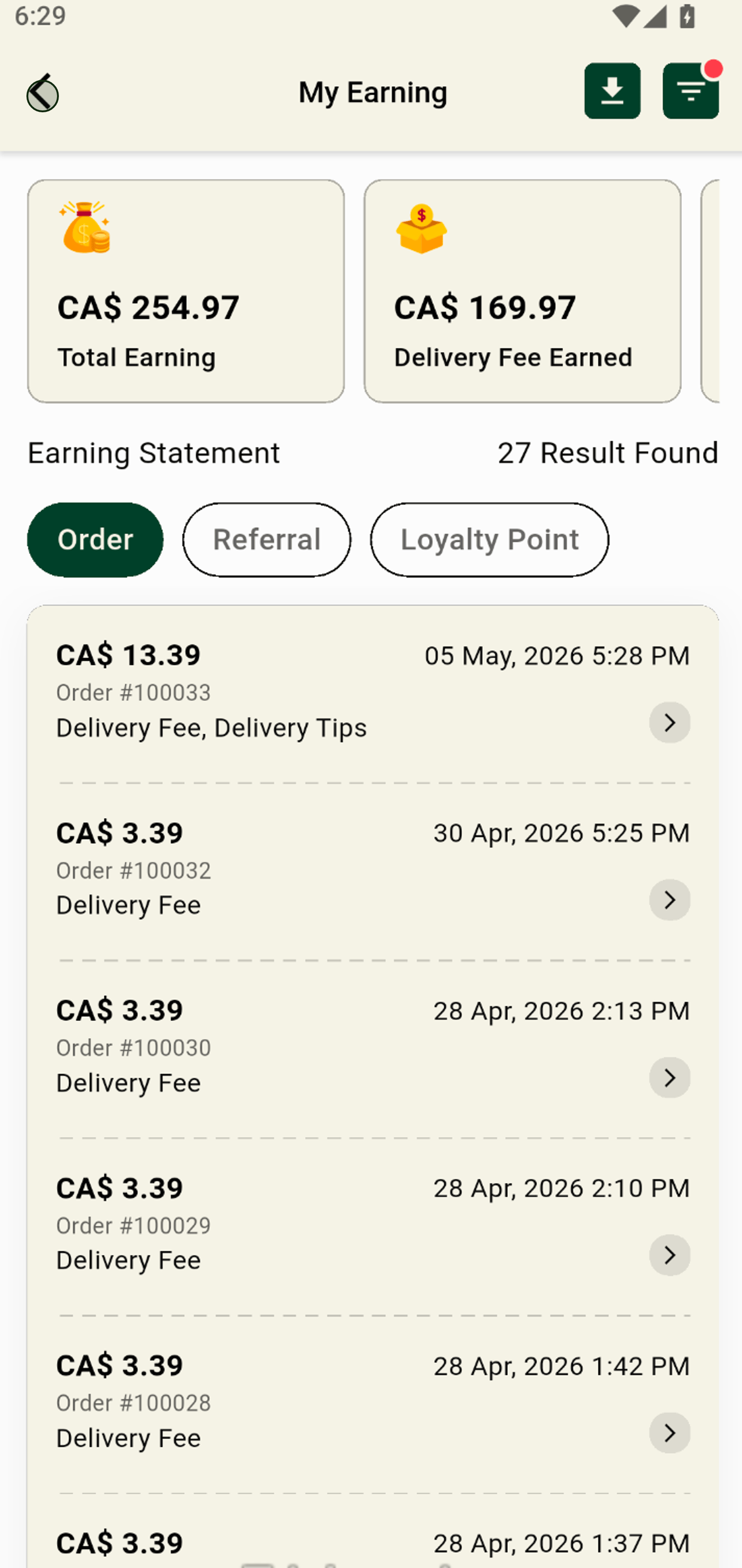
13. Apply your selected filters to view tailored earning statements.
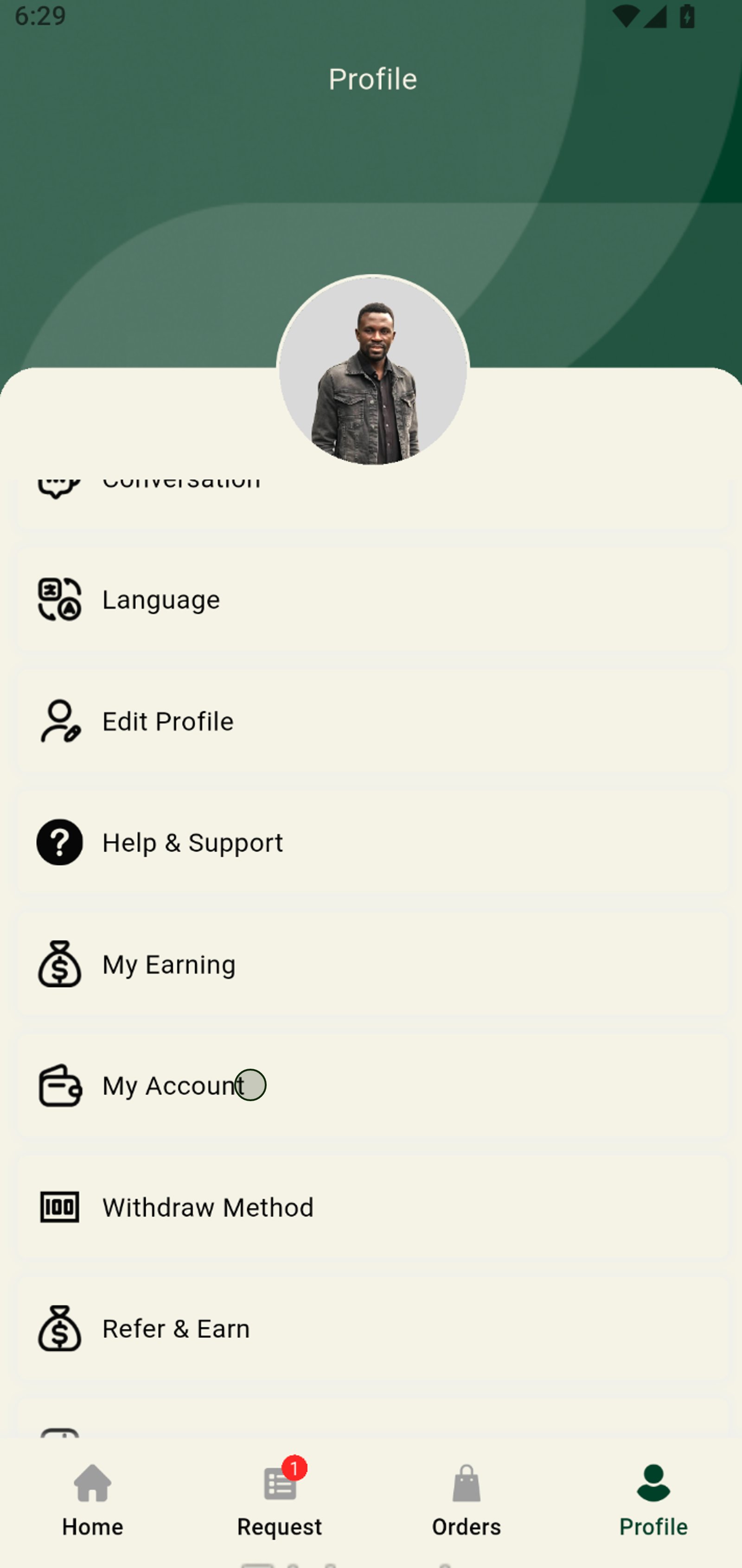
14. Navigate back to your account to continue managing your funds.
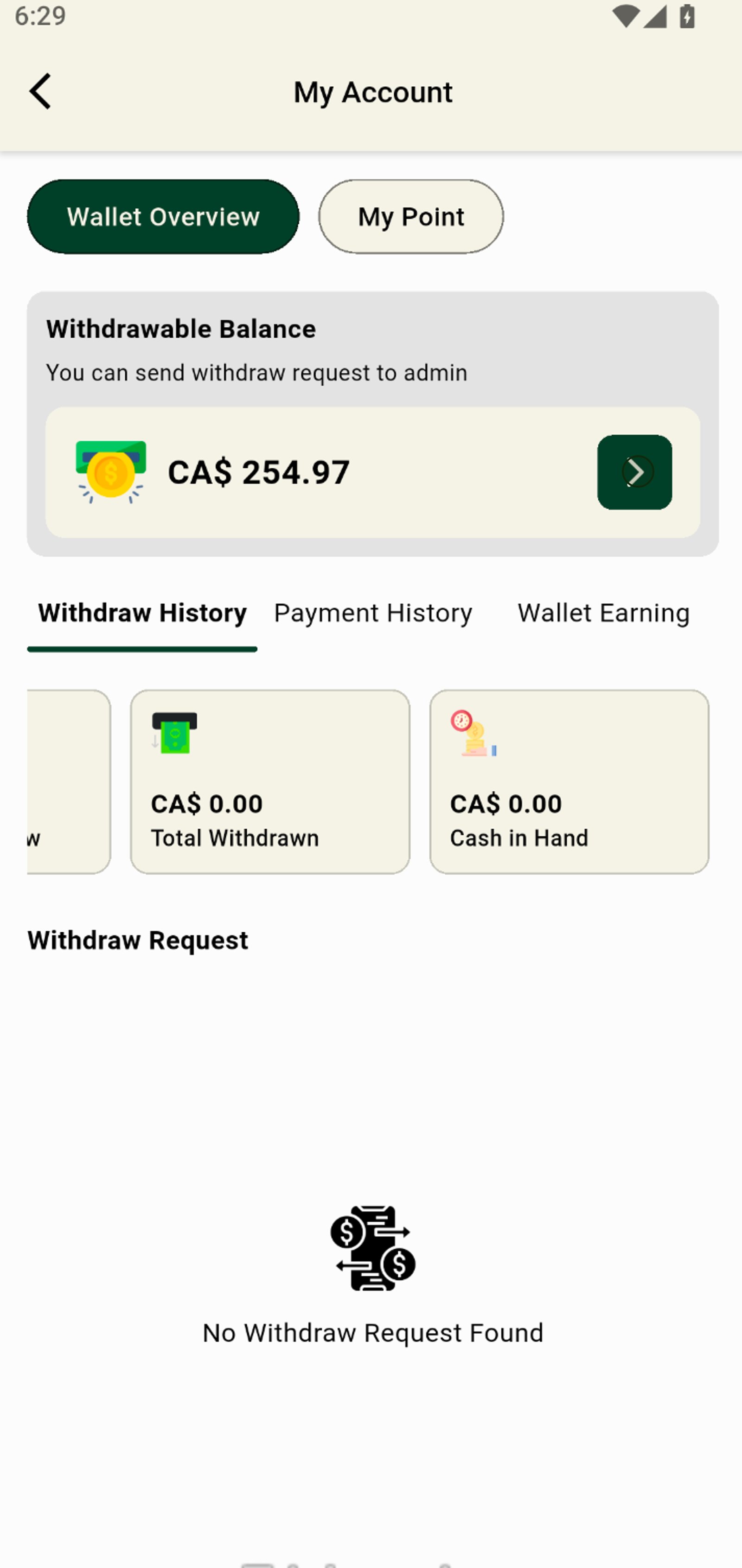
15. Head over to My Account for a deeper dive into your wallet and transaction settings.
16. Tap Payment History to see all your past payout transactions at a glance.
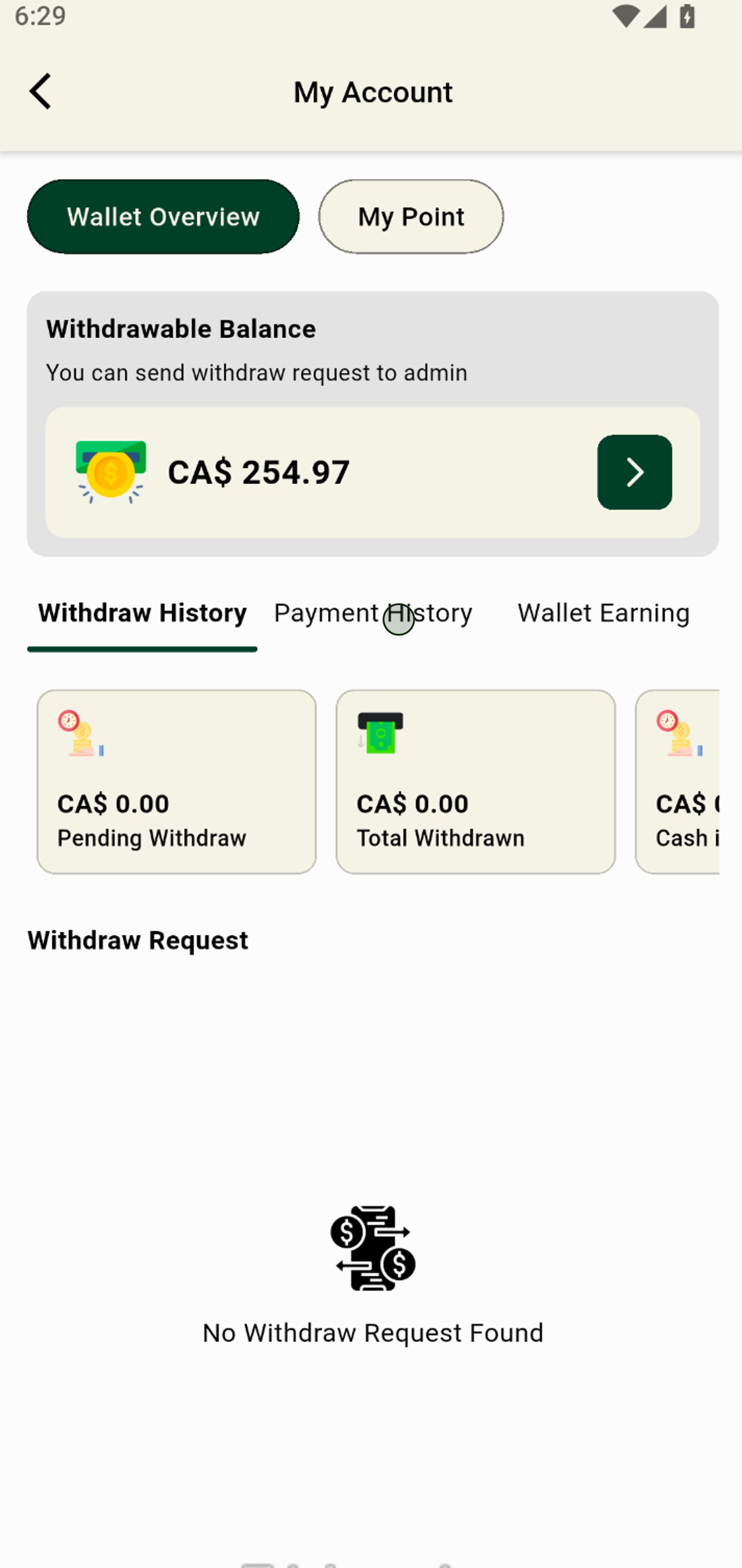
17. Switch to Wallet Earning for a transparent view of your wallet's growth.
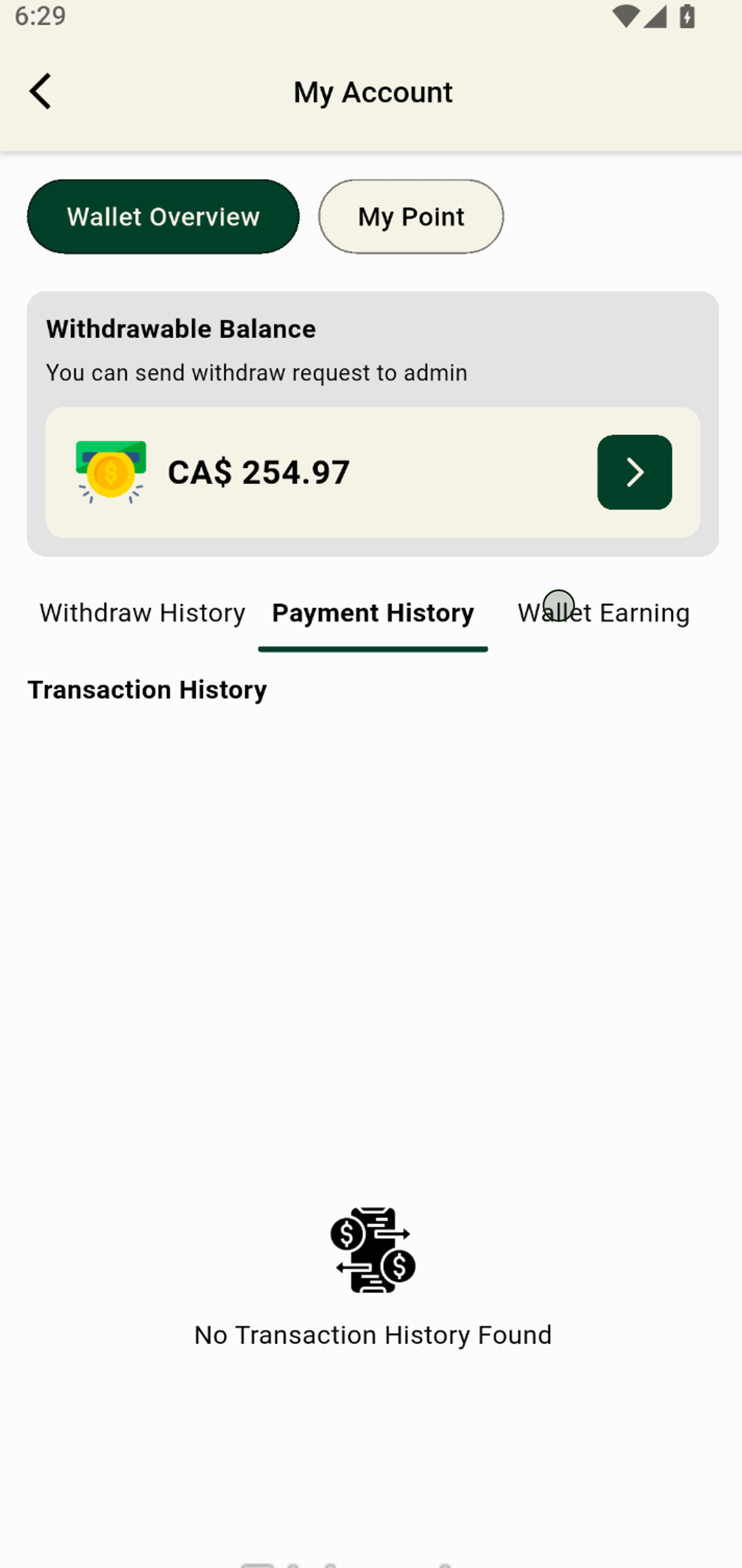
18. Click Withdraw History to keep tabs on previous withdrawal requests.
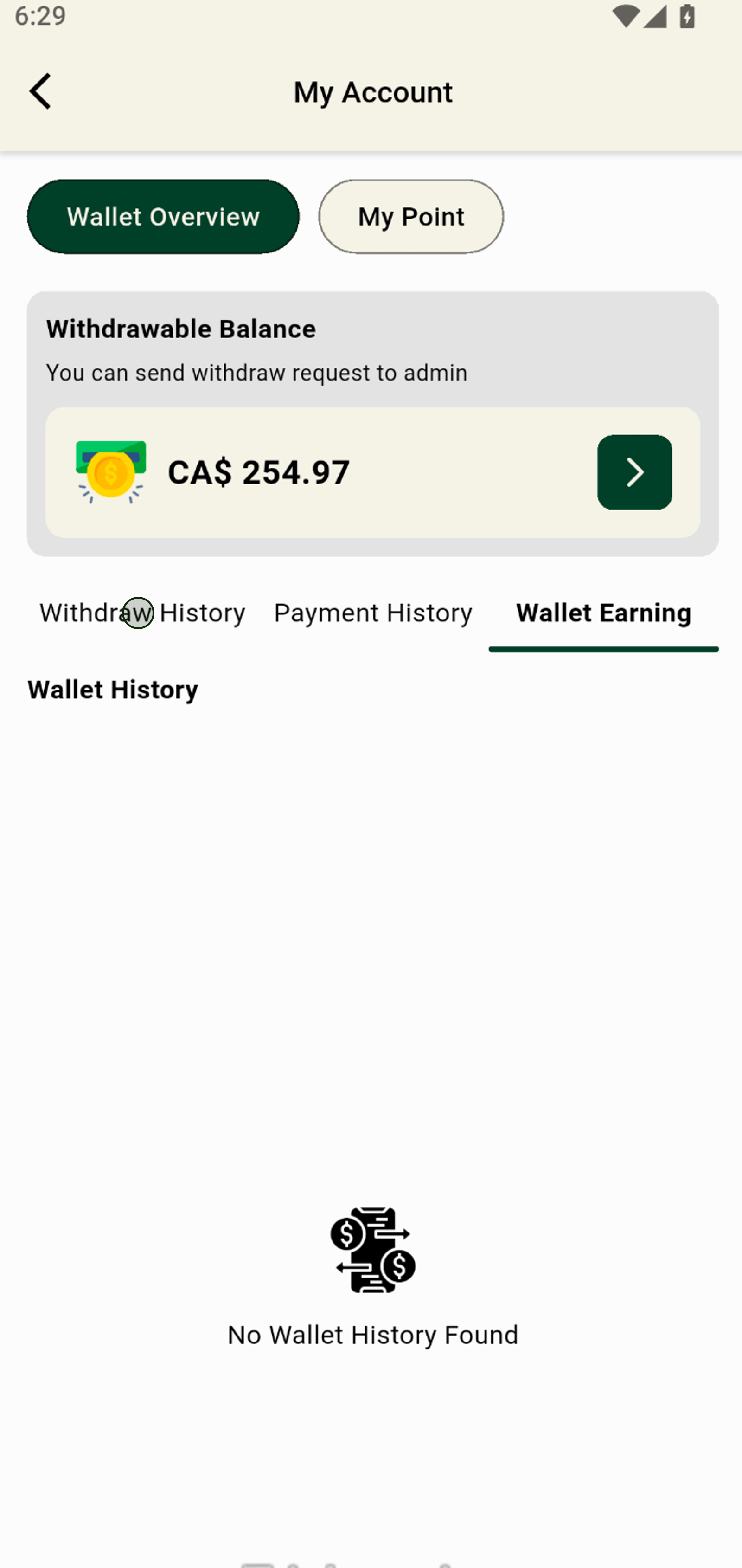
19. Review your Total Withdrawn to see how much you've cashed out so far.
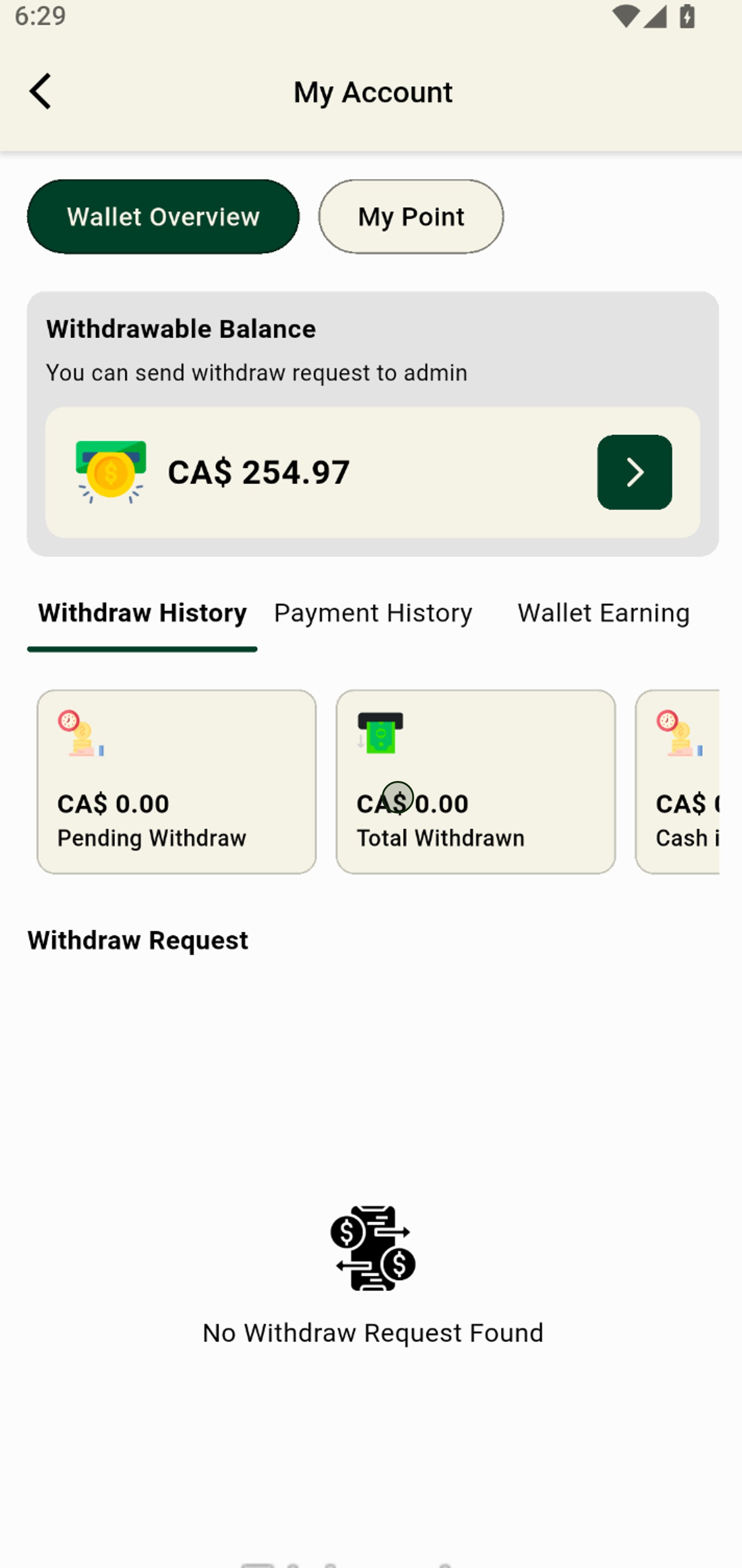
20. Tap the arrow next to your withdrawable balance to start a withdrawal request.
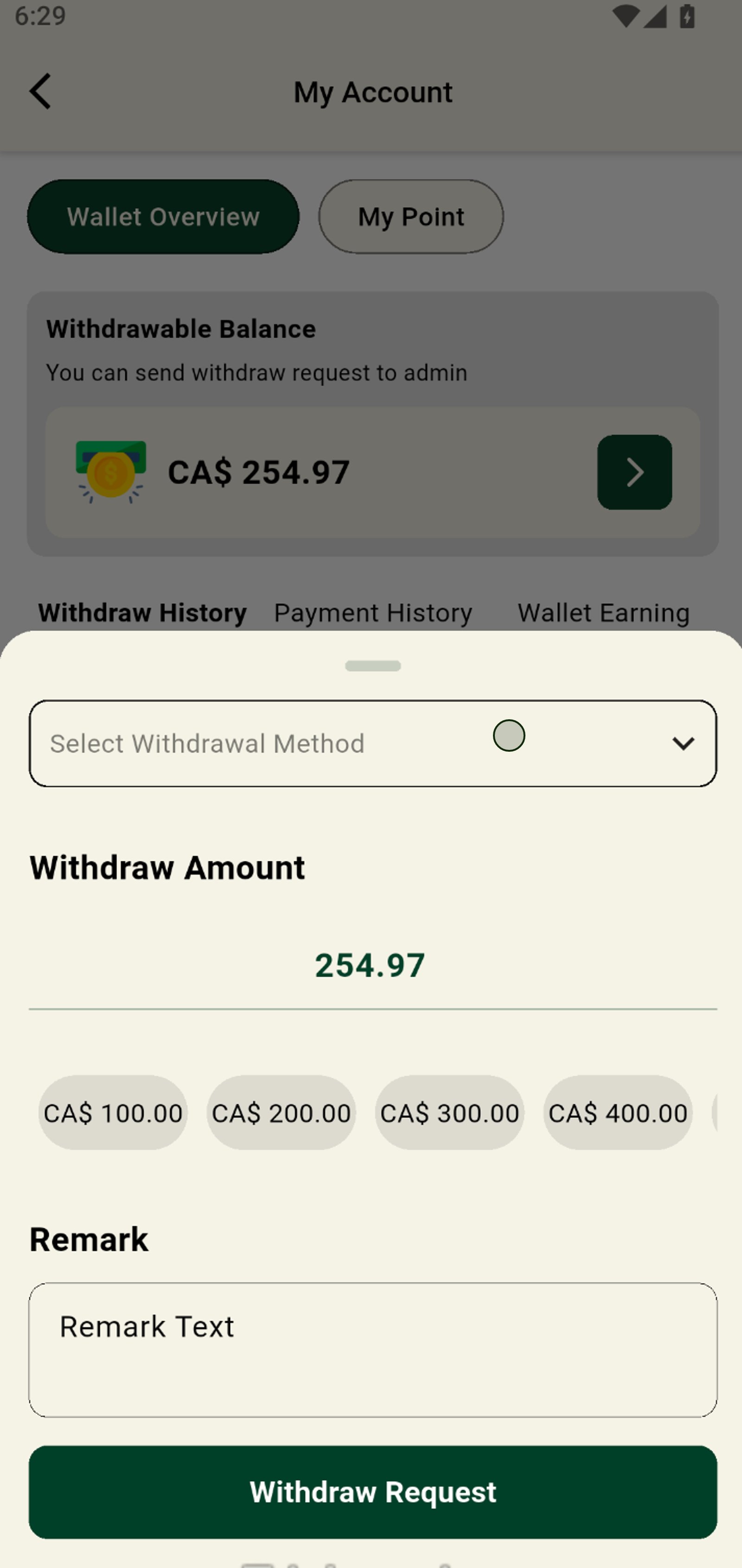
21. Open the withdrawal method menu and get ready to pick how you want to get paid.
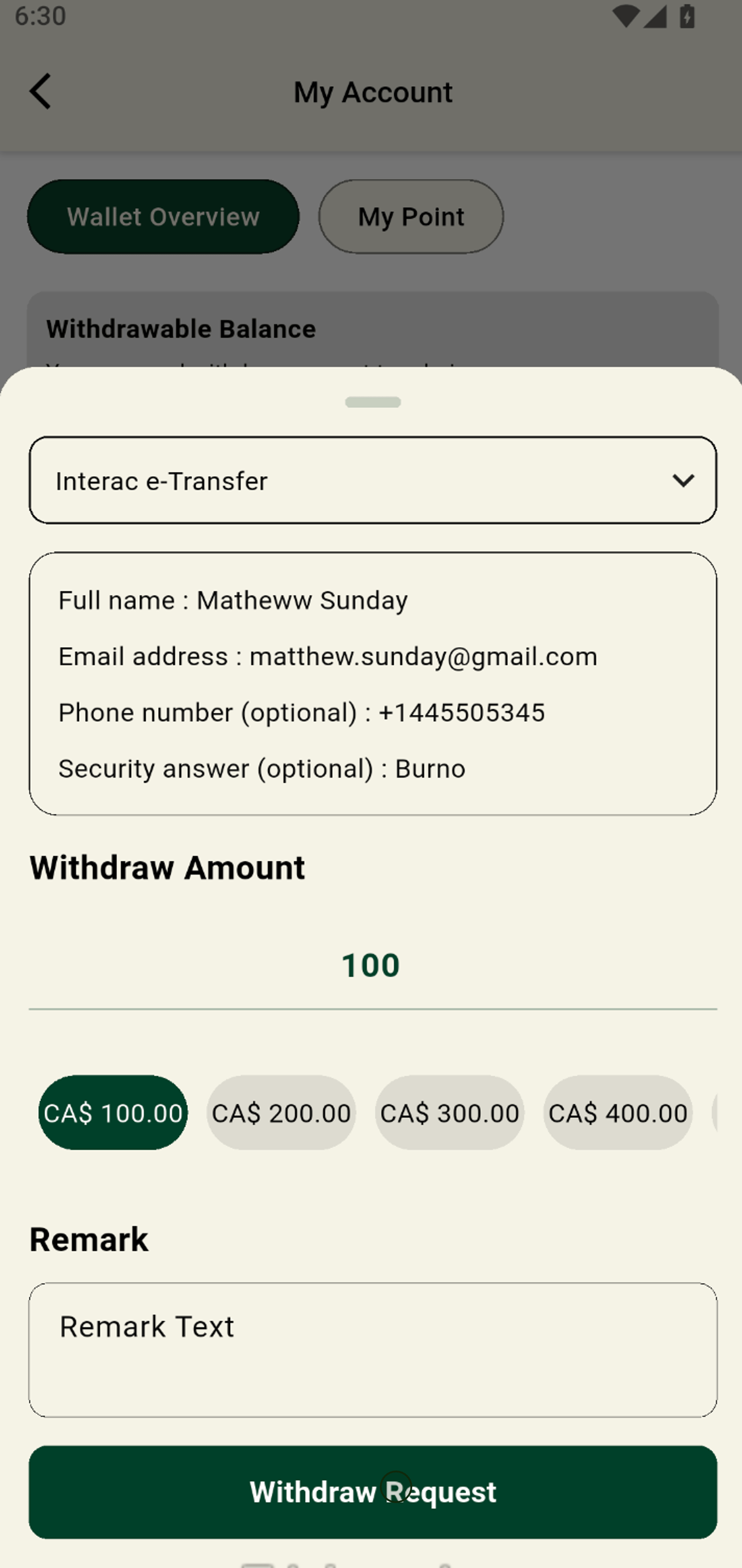
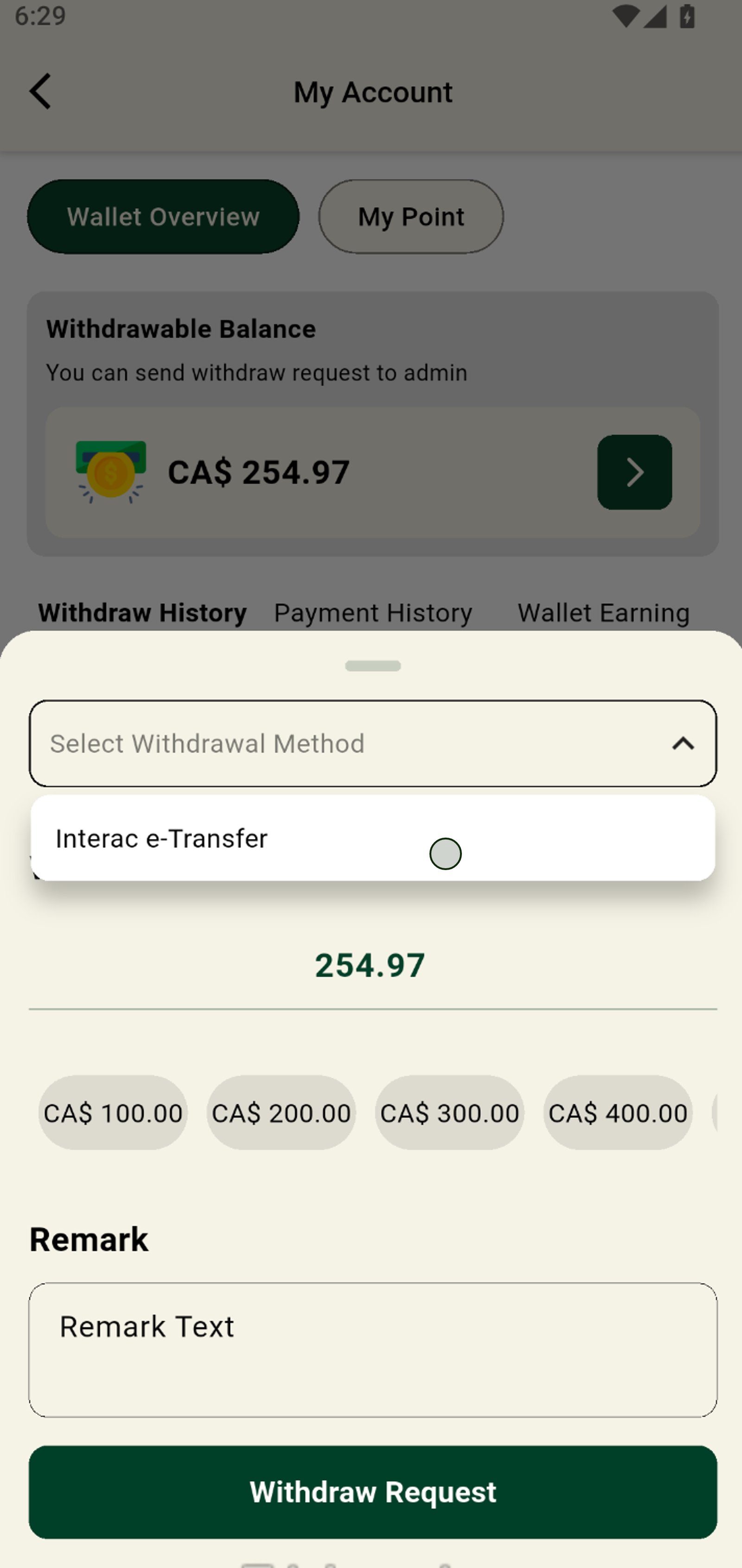
22. Select Interac e-Transfer for instant, secure payout right to your Canadian bank account.
23. Choose a preset amount like CA$ 100.00 for a quick withdrawal.
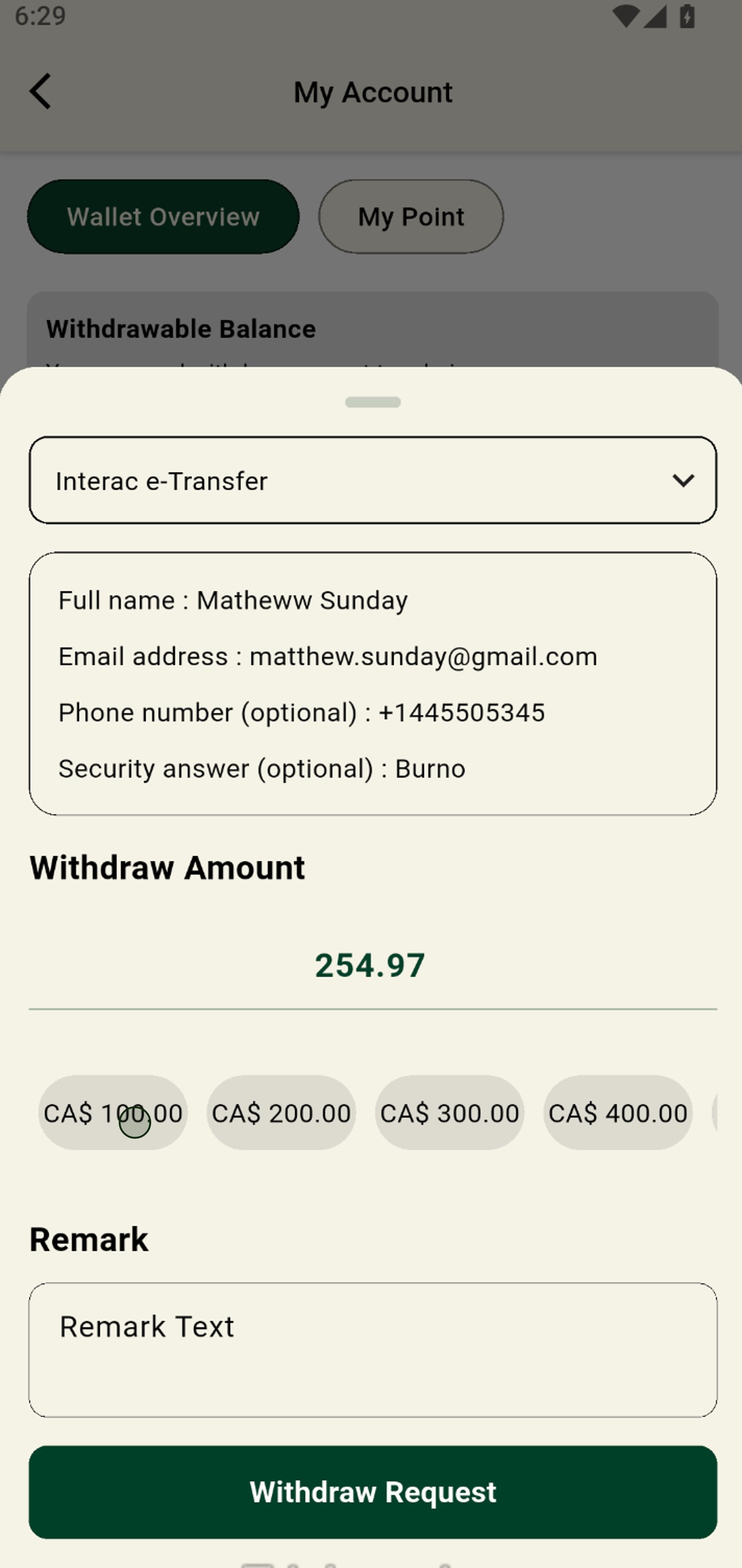
24. Tap Withdraw Request to instantly process your payout with Interac e-Transfer.